Introduction
Site Kit’s visitor groups feature allows you to gain deeper insights into your website visitors. It uses Google Analytics audiences to allow you to view data for specific groups that you define. Examples of possible groups include New visitors, Returning visitors or Purchasers.
By segmenting your site visitors into groups, you can understand how different types of visitors interact with your content and contribute to your business goals.
Note: Within Site Kit, the plugin refers to your Google Analytics audiences as visitor groups.
Set up visitor groups
Note: The below guide covers setting up visitor groups for the first time. If another administrator has already enabled visitor groups, the feature is active by default for all other users. See the Viewing the visitor groups section after another user has set it up for more details on visitor groups if the feature is already enabled.
Visitor groups can be enabled via Site Kit > Settings > Admin Settings > Visitor groups. They are only available once the Google Analytics module has been connected and is out of the gathering data state.
When starting the visitor groups setup, you’ll be directed to the oAuth screen where you need to grant access for Site Kit to connect with your Google Analytics account to create audiences and a custom dimension as needed, unless previously granted.

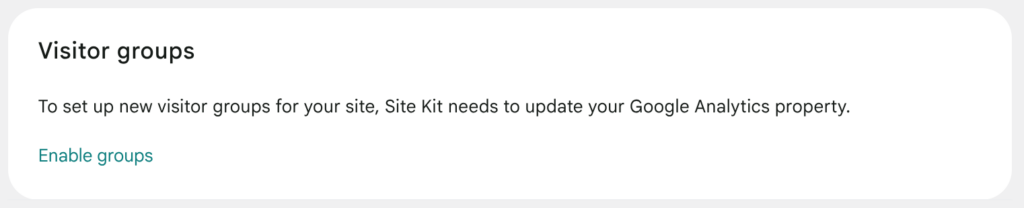
If you wish to disable visitor groups, you can do so from within Site Kit’s settings page, Site Kit > Settings > Admin Settings > Visitor groups. Toggle off the Display visitor groups in dashboard option to disable.
If you have already created audiences within Google Analytics
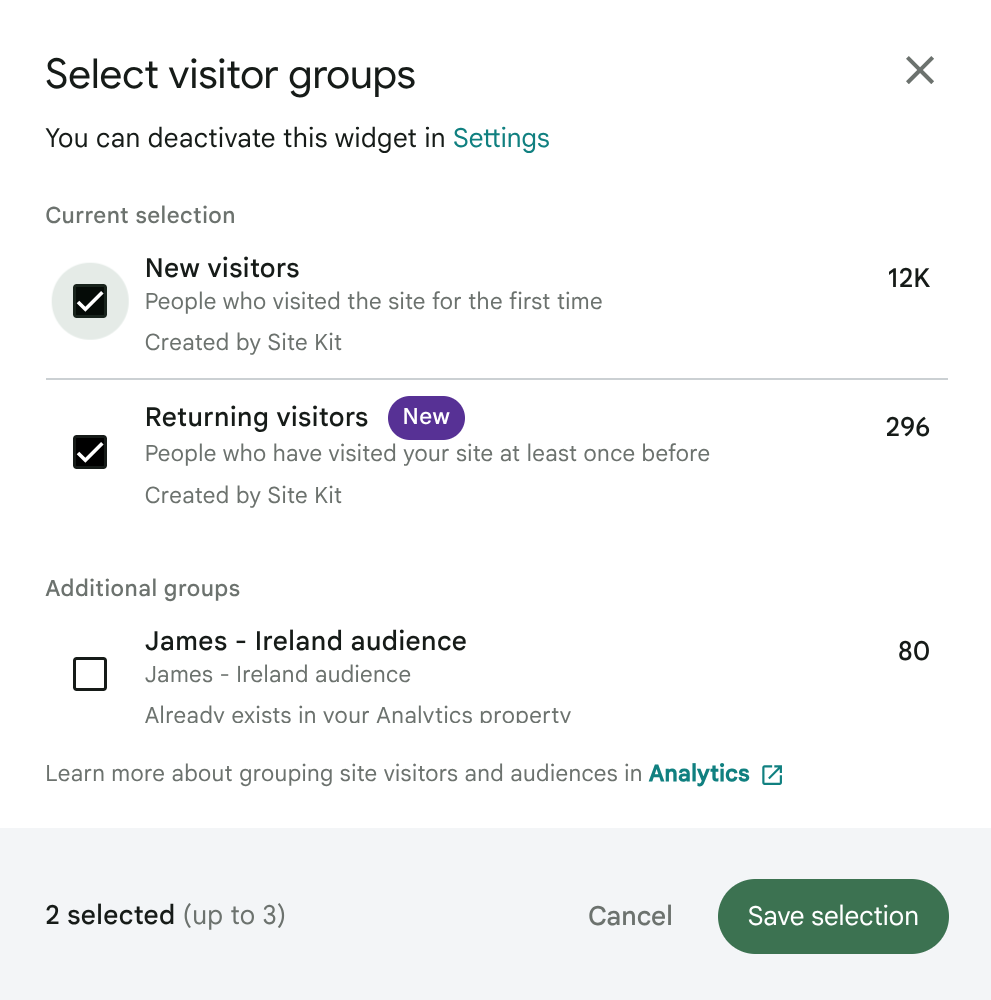
If you already have custom audiences defined in Google Analytics, Site Kit makes these available for selection as visitor groups as long as there is existing data for them. Visitor groups with the highest visitor count is used to determine the default groups initially displayed if there are a number of audiences added from Google Analytics.
You can change the visitor groups that are displayed. See the Changing the visitor groups displayed section for more information.
If you have not yet created audiences within Google Analytics
If you don’t have any eligible custom audiences defined, Site Kit creates the New visitors and Returning visitors groups for you, for the connected Google Analytics property.

Visitor groups on the dashboard
The visitor groups section of the Site Kit dashboard appears within the Traffic tab. You can navigate to this by clicking on the Traffic tab and scrolling down to the Understand how different visitor groups interact with your site section.

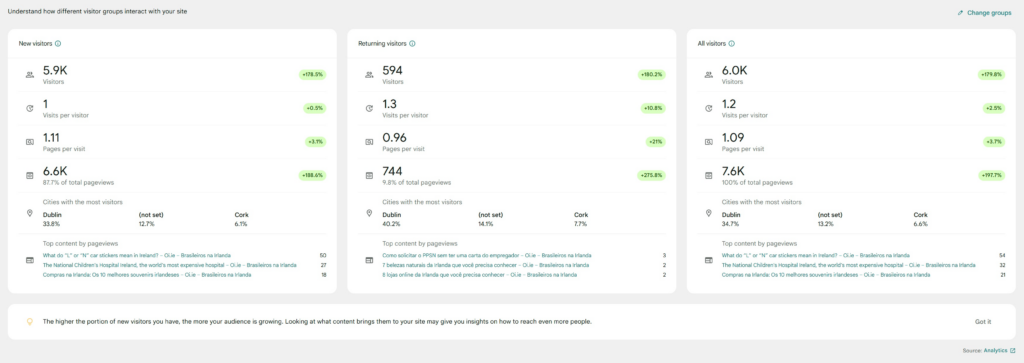
For each visitor group shown, a tooltip info icon appears in the top right of the visitor group title. This will display a message to provide some insights into the group.
View the visitor groups section after another user has set it up
For administrators who login for the first time after another administrator set up visitor groups, or for view-only users via dashboard sharing, a popup is displayed in the lower right corner of the page on desktop for the first time, as a notification that the feature has been enabled.
The user’s initial selection of visitor groups is automatically determined based on the audiences that are available, with user-defined custom audiences that have data over the past 90 days taking top priority, followed by the Site Kit-created New visitors and Returning visitors audiences if they exist, followed by the Purchasers predefined audience if it’s ever had data.
How to change the visitor groups displayed
The visitor groups can be changed by clicking on Change groups. The active groups a user selects are specific to that user.
After clicking on the Change groups link, an overlay selection panel will appear, allowing you to choose your preferred visitor groups to be displayed within the visitor group section. After selecting your preferred tiles, you can click on the Save selection button. After doing so, the visitor group section of the Site Kit dashboard is updated with your selection.
Default and custom groups
The below visitor groups may be available for selection by default:
New visitors: This visitor group allows you to view data based on new visitors to your site. Due to the way audiences work in Google Analytics, it’s possible for a visitor to be counted in both the New visitors and Returning visitors groups within a given timeframe.
This is because, within a timeframe, a user may visit the site for the first time and be included in the New visitors group. They could subsequently revisit the site within the same timeframe, adding them also to the Returning visitors group.
It’s possible that the sum of the New visitors and Returning visitors metrics may exceed the All visitors count for the given timeframe due to visitors appearing in both groups during the timeframe as described above.
Returning visitors: This visitor group allows you to view data specific to returning visitors to your site, visitors who have accessed your site more than once over the selected reporting period.
It’s possible for a visitor to be counted in both the New visitors and Returning visitors groups as mentioned above.
All visitors: This group is associated with the “All Users” predefined Google Analytics audience that exists in your selected Analytics property. Users from this group can be counted in more than one group.
The “All Users” audience is never considered for inclusion in the initial selection.
Purchasers: This group is associated with the “Purchasers” predefined Google Analytics audience that already exists in your selected Analytics property.
Site Kit only considers this for inclusion as a visitor group initially if there is at least one pre-existing audience added to the selection and the “Purchasers” audience in Google Analytics has ever had any users.
Custom groups: More groups may be available for selection if you have created additional audiences with your Google Analytics account for the connected property. The titles of these groups match the audience titles as defined in Google Analytics.
Metrics
Each tile in the visitor groups section displays the following metrics for each group selected. These metrics are specific to each visitor group for the selected reporting period
- Visitors: Total visitors to your site (using the “Total users” metric)
- Visits per visitor: The average number of sessions per visitor
- Pages per visit: The average number of pages visited per visitor
- Total pageviews: The total number of pages viewed
- Cities with the most visitors: The top three cities where your site traffic comes from
- Top content by pageviews: The pages your visitors read the most. See the Top Content by Pageviews section for more details on this metric.
Top content by pageviews
This visitor group metric is used to display the three posts with highest overall traffic by pageviews.
Frequently asked questions
Do I need to be a Google Ads user to define an audience?
No. Visitor groups can be configured with only the Google Analytics module enabled.
What are the benefits of using visitor groups?
Visitor groups allow you to review your audience by segmenting different visitors. This can help ensure your targets and goals are met. Examples of how it may benefit site owners include:
- Determining which visitors bring the most revenue
- Determining what content brings the most visitors, for new or returning visitors
- Determining how to optimize your content to bring in more returning readers
If I don’t want to use visitor groups, can I disable the feature?
You can disable visitor groups via Site Kit > Settings > Admin Settings > Visitor groups. Toggle off the Display visitor groups in dashboard option so that the section does not appear in the Site Kit dashboard.
What happens if you change the connected Google Analytics property?
This resets the visitor groups feature. You can choose to set it up again if you wish. The choice of whether the section is shown on the dashboard persists between resets.
If I set up an audience within Google Analytics, will this be accessible for others to view within Site Kit’s visitor groups selection panel?
Yes, any audience that has been created at the Google Analytics level, is available to select from the visitor group selection panel.
Can I use visitor groups with dashboard sharing?
Yes. If the Google Analytics module was shared, all users with view-only access can view the visitor groups section of the Site Kit dashboard. They are also able to select their preferred group, specific to them.
View-only users can not create a new visitor group from within Site Kit.
What happens if my visitor groups are no longer available or are removed?
If selected visitor groups are no longer available, which can occur if the related audiences in Google Analytics were archived, a placeholder tile or banner is displayed in place of the missing group tiles.
If all visitor groups have been removed from Analytics, a banner notice appears in place of the visitor group tiles. The banner includes a link to the audiences page in the Google Analytics article instead.
I’ve enabled visitor groups, but I’m not seeing correct data. What’s wrong?
Data is gathered for your audience from the date of creation of these audiences onwards, and it can take 24-48 hours for a user to show up in an audience from when they visited your site. This means that if Site Kit created the groups for you, it takes time for data to collect specific to these groups.
I encountered an error, “Failed to set up visitor groups”. What can I do?
If you encounter this error, please click on the Retry button. If the issue persists, you may be encountering a third party plugin conflict, or an issue communicating with your Google Analytics account. Please try to enable visitor groups from another browser or device. If the same occurs, please open a support topic on the plugin support forums for assistance.
I have a Purchasers audience in my Google Analytics account. Why is this not available for selection within Site Kit?
The Purchasers audience is one of the predefined audience groups that Google Analytics creates for each property. The other audience that Google Analytics creates by default is All users, which is known as All visitors within the visitor groups selection panel in Site Kit.
The Purchasers visitor group is only available for selection as a visitor group within Site Kit if the related Google Analytics audience has ever had any data.
I’m seeing a “Partial data” notice in a visitor group tile. What does this mean?
A message regarding “Partial data” means that there is not a full range of data to cover the selected date range. For example, you may be viewing data for the previous 28 days, but there is only data for the past 14 days.